vCita logo

The Resources You Need to Improve Local Visibility

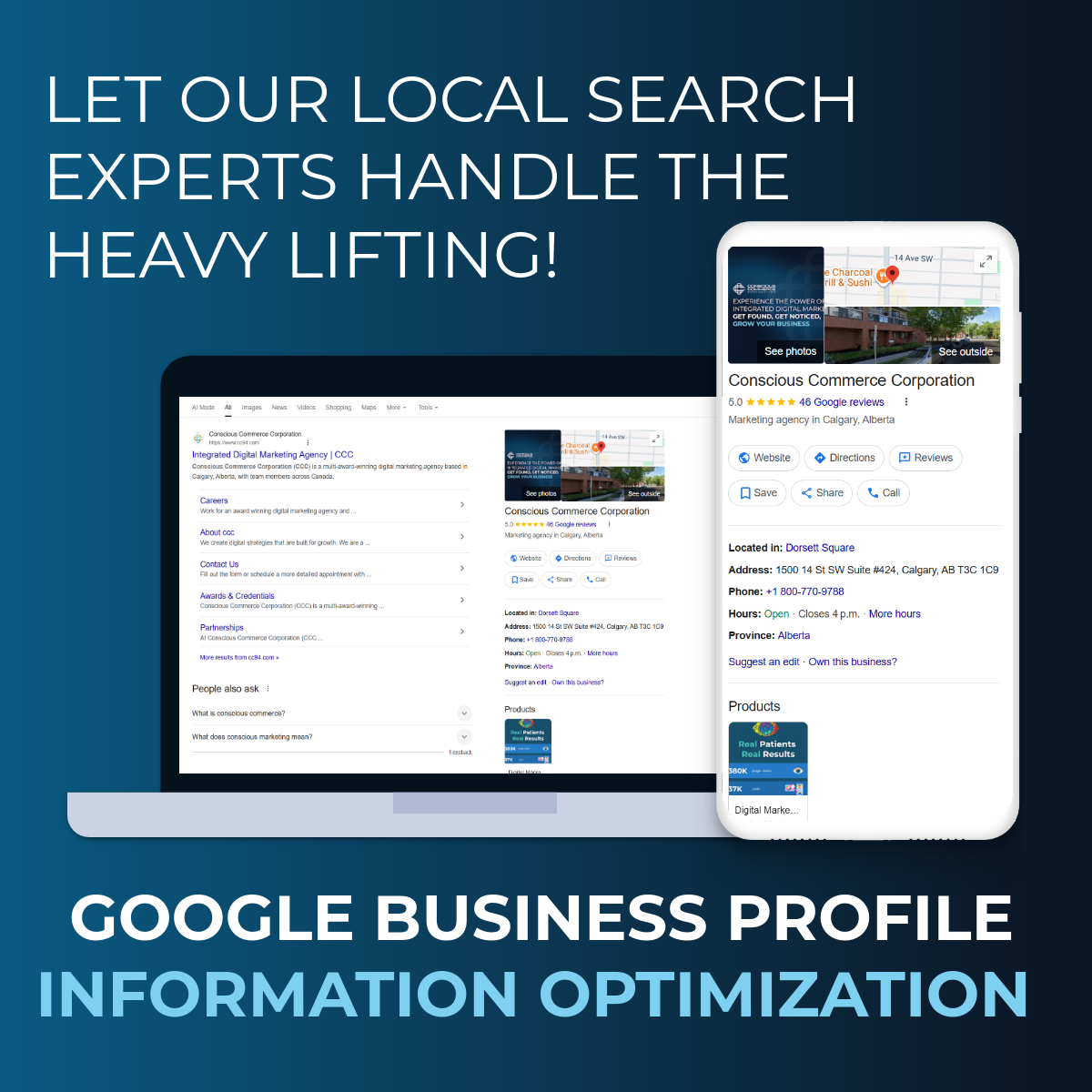
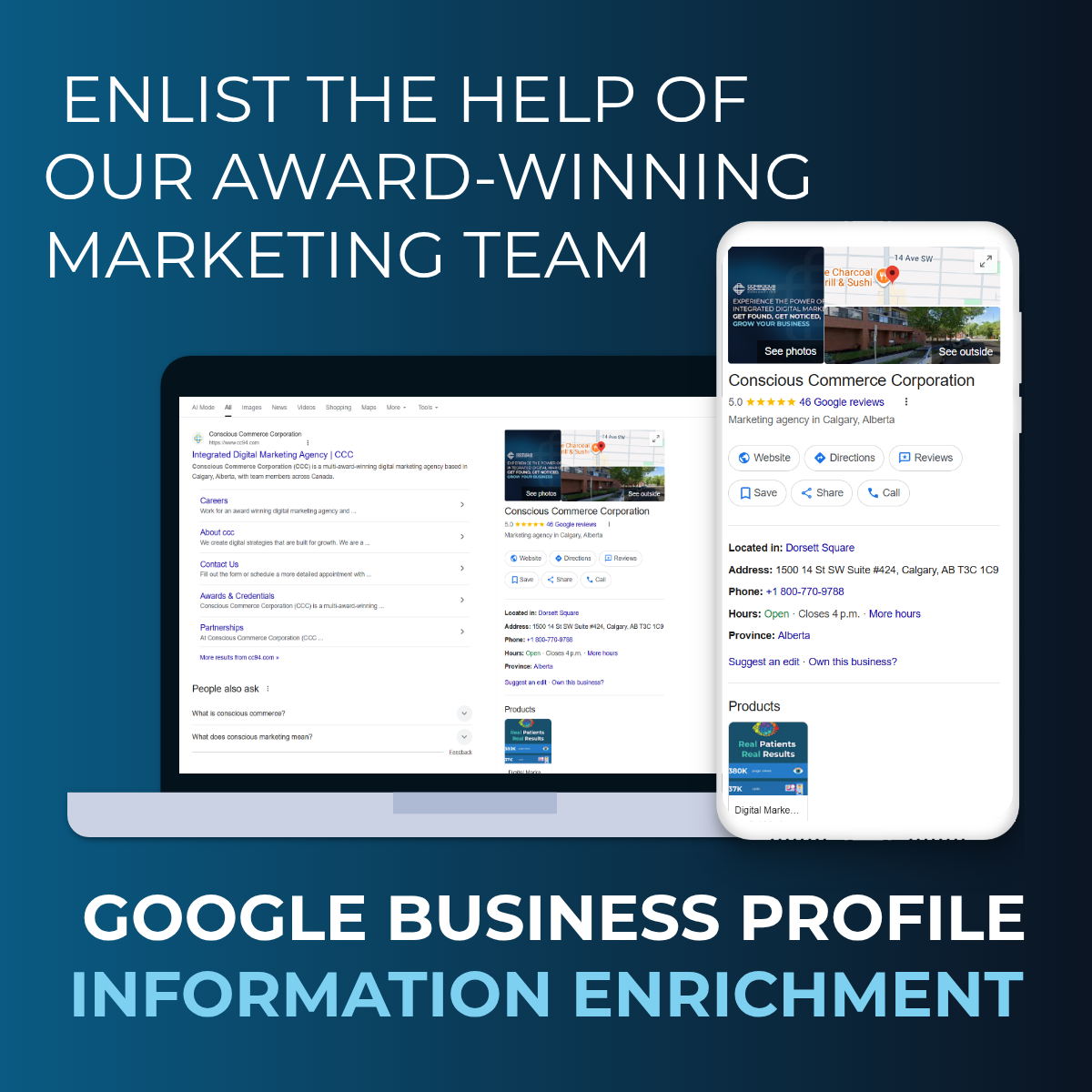
A white cell phone with a picture of a Google Business Profile on the screen.
vCita logo

The only platform you need to improve

local SEO

A cell phone with a google map app open on it.
vCita logo

The only platform you need to improve

local SEO

A cell phone with a google map app open on it.

Account Review & Events | Resources & FAQs | Additional Training | Related Services & Promotions

Book Your Account Review

Book a Complimentary Account Review with a dedicated Marketing Account Partner to discuss strategies you can implement to strengthen your current website.

BOOK NOW

Upcoming Events/Replays

Resources

Frequently Asked Questions

  • Why isn’t my business showing up on Google Maps?

    Make sure your profile is verified and that your address is entered correctly. Also check that your business category is accurate and that your profile has not been marked as closed or moved.

  • How do I update my hours or holiday hours?

    Login to your account and click ‘GBP Post Scheduler’ from the top menu. You’ll see a list of all of the Locations that you have purchased GBP Post Scheduler for. 


    To schedule posts you’ll need to connect the Location to their Google Business Profile (GBP) account which you can do by clicking the ‘Connect to GBP’ button and following the instructions here.


    Once the GBP account is connected you can start posting. 


    Click ‘View’ and then ‘Create New Post’. 


    You have the option to create three different types of posts:

    • Update
    • Offer
    • Event
    • Screenshot

    Enter the required information and an image that will help your post to stand out. You’ll receive a notification on-screen if the photo you upload isn't the right size or resolution. 


    If you need help writing a description for any type of post you can generate content using AI. Simply write a prompt in the description box (such as: write a description for 50% off offer), and click the ‘Generate content using AI’ button. Make sure you read through the copy that appears and make the necessary edits. 


    You can use the AI content generator 50 times per day, per account. We will tell you how many uses you have left and when you run out we’ll also let you know the number of hours left until you can use it again.


    To preview your post hit the ‘Preview’ button. Once you’re happy with the post, click to schedule it or post it straight away.


    If you choose to schedule it you can choose a date, time, and timezone for your post to go out. 


    Screenshot


    Back in the GBP Post Scheduler dashboard, you’ll see any posts that are currently live, scheduled, expired, and rejected. 


    Live = any posts that are currently live and viewable in your GBP.

    Scheduled = any posts that are scheduled to go live in the future.

    Expired = any event or offer posts that have expired.

    Rejected = any posts that Google has rejected. Google can reject any posts that don’t meet their guidelines


    To only see any of these options rather than all of them at once, click on the tabs at the top of the page.


  • Why did my post or photo get rejected?

    Google has strict content policies. Posts or photos with too much text, stock images, logos as photos, or anything that appears promotional might get rejected. Try uploading original content that directly relates to your business.

  • Why can’t I see the changes I made to my profile right away?

    Edits may take up to 24–48 hours to appear publicly. Some changes may be subject to Google review, especially if they involve your name, location, or category.

  • What does “profile strength” mean and how do I improve it?

    Profile strength refers to how complete and active your Google Business Profile is. To improve it, add more photos, respond to reviews, post regular updates, and ensure all your business info is filled out and accurate.

  • Can I control the photos that appear first on my profile?

    You can set a cover photo and logo, but Google ultimately decides which images display based on relevance and engagement. Regularly adding high-quality, relevant images can influence what’s shown.

  • How do I get more reviews on my profile?

    Ask customers directly, after a purchase or visit, via email, or with a review link. You can find a direct review link in your profile dashboard under “Get more reviews.”

  • Why are insights data (like views or searches) missing or delayed?

    Insights are updated with a delay and may not reflect real-time data. If you're seeing extended outages, check Google's status updates or support channels for known issues.

  • How do I add or remove users from my profile?

    Go to your profile, click on the three-dot menu, then “Business Profile settings” > “Managers.” From there, you can invite new users or remove existing ones.


    Read our full guide here >

Need More Training?

Add a MAP Support Plan

UPGRADE PLAN

Book a 1 Time Training Session ($150)

BOOK NOW

Related Services


GBP Account Review

Local Search Grid Report

Local Rank Tracker Report

Local Search Audit Report

Get Reviews Campaign

Citation Tracker Report

Citation Campaign